

Configuring Credentials
Learn how to configure access tokens for code hosts when creating changesets.
Interacting with a code host (such as creating, updating, or syncing changesets) is made possible by configuring credentials for that code host. Sourcegraph uses these credentials to manage changesets on your behalf and with your specific permissions.
Requirements
- Sourcegraph instance with repositories in it. Read more in the Quickstart guide on how to set up a Sourcegraph instance.
- Account on the code host with access to the repositories you wish to target with your batch changes.
Types of credentials used by Batch Changes
Batch Changes can use access tokens for all code hosts, and GitHub apps (experimental) for GitHub code hosts.
Two types of credentials can be configured to use with Batch Changes:
- User Credential - A credential set by an individual Batch Changes user for their personal code host user account.
- Global Service Credential (Configurable by admins only) - A credential that can be used by any Batch Changes user who does not have a personal credential configured. These are also required for importing changesets and syncing changeset state from the code host when webhooks are not configured. Although currently importing changesets is not supported without a global credential, if you’re concerned about individual user permissions, using a global credential is not recommended.
Different credentials are used for different types of operations, as shown in the table below.
- 🟢 Preferred: Sourcegraph will prefer to use this credential for this operation if it is configured.
- 🟡 Fallback: Sourcegraph will fall back to use this credential for this operation if it is configured.
- 🔴 Unsupported: Sourcegraph cannot use this credential for this operation.
| Operation | User Credential | Global Service Credential |
|---|---|---|
| Pushing a branch with the changes | 🟢 | 🟡 |
| Publishing a changeset | 🟢 | 🟡 |
| Updating a changeset | 🟢 | 🟡 |
| Closing a changeset | 🟢 | 🟡 |
| Importing a changeset | 🔴 | 🟢 |
| Syncing a changeset | 🔴 | 🟢 |
When creating a changeset on a code host, the author of the changeset will reflect the credential used (e.g., on GitHub, the user will be the pull request author). This is why a user credential is preferred for most operations.
Personal access tokens
Personal access tokens are not strictly required if a global access token has also been configured, but users should add one if they want Sourcegraph to create changesets under their name.
Commit author is determined by your spec file or local git config at the
time of running src batch [apply|preview], completely independent from
code host credentials.
Adding personal access token
Adding a personal access token is done through the Batch Changes section of your user settings:
- From any Sourcegraph page, click on your avatar at the top right of the page
- Select Settings from the dropdown menu
- Click Batch Changes on the sidebar menu
- Click Add credentials, and follow the steps to create a new token for the code host. If the code host is GitHub, select Personal Access Token as the Authentication strategy.
Code hosts with tokens configured are indicated by a green tick to the left of the code host name, while code hosts without credentials have an empty red circle next to them.
Removing a personal access token
To remove a token, navigate back to the same section of your user settings, then click Remove:
Once the token is removed, the code host's indicator should revert to the empty red circle.
Global service account tokens
Global credentials are usable by all users of the Sourcegraph instance who have not added their own personal access tokens for Batch Changes. This makes them a handy fallback but optional if users are adding their own tokens for publishing changesets.
However, a global service account token is currently required for importing existing changesets on your code hosts into batch changes.
Additionally, if you have not configured webhooks from your code host, Sourcegraph requires a global service account to keep changesets up to date.
If forks are enabled, then note that repositories will also be forked into the service account.
Adding a global service token
Adding a global service account token is done through the Batch Changes section of the site admin area:
- From any Sourcegraph page, click on your avatar at the top right of the page
- Select Site admin from the dropdown menu
- Click Settings under the Batch Changes sub-heading on the sidebar menu
- Click Add credentials and follow the steps to create a new token for the code host. If the code host is GitHub, select Personal Access Token as the Authentication strategy.
Code hosts with tokens configured are indicated by a green tick to the left of the code host name, while code hosts without credentials have an empty red circle next to them.
Removing a global service token
To remove a token, navigate to the same section of the site admin area, then click Remove. Once the token is removed, the code host's indicator should revert to the empty red circle.
Creating a code host token
To finish configuring the new credentials, you will need to create a new personal access token on your code host and paste it into the input field on the Add credentials modal.
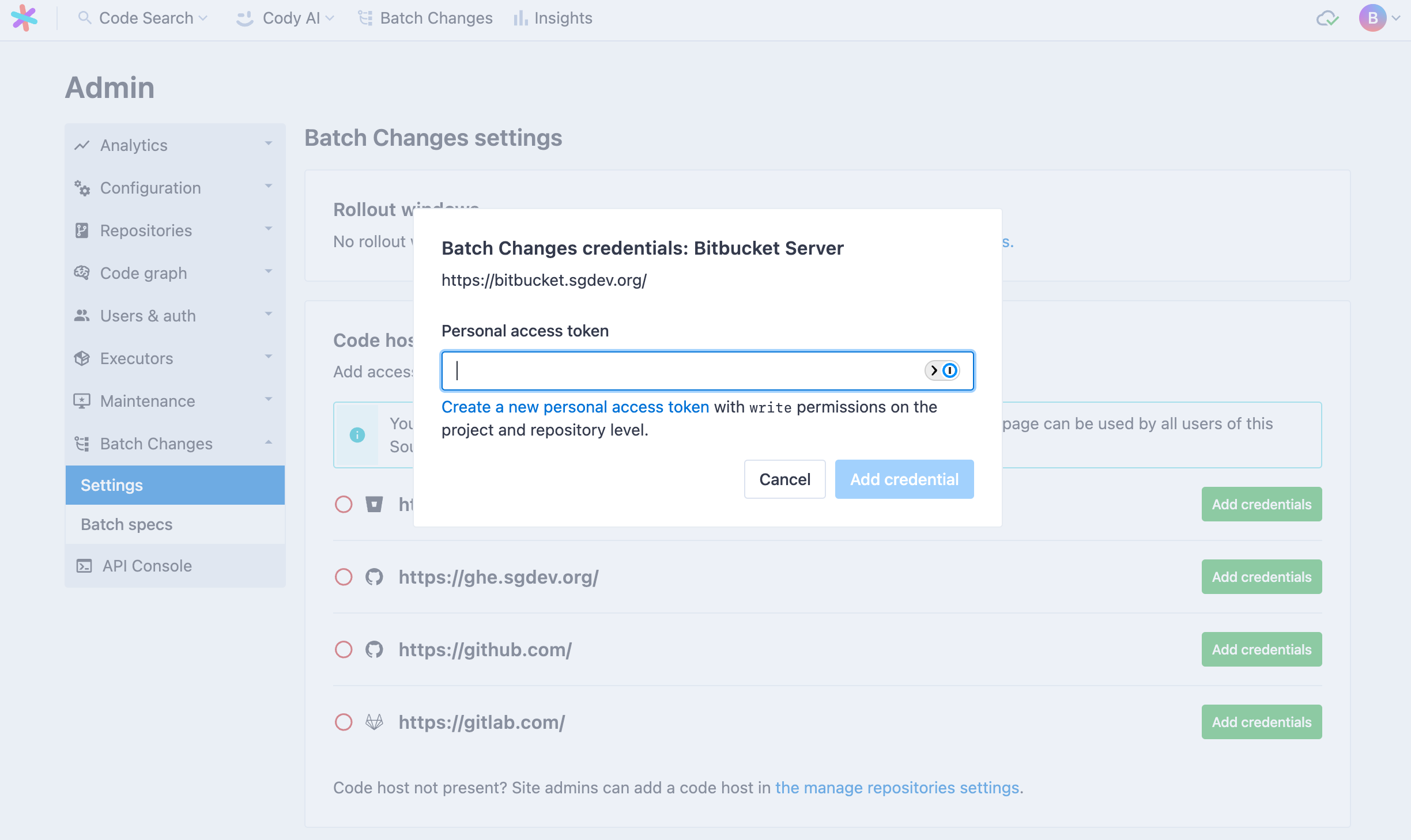
Let's learn how you can do it for different code hosts.
GitHub
On GitHub.com, create a personal access token or fine-grained access token with the correct scopes.
The workflow scope is technically only required if your batch changes modify files in the .github directory of a repository. Still, it's recommended to enable it regardless to avoid confusing errors at a later time.
When working with organizations that have SAML SSO (Single Sign On) enabled, configuring credentials requires an additional step that involves white-listing the token for use in that organization.
Currently, classic and fine-grained access tokens are supported only. Alternative token types like OAuth access tokens (for example, OAuth apps) are not supported.
Personal Access Token
Personal access tokens will have access to all repositories you have access to.
Click here to prefill the form.
Required Scopes:
reporead:orguser:emailread:discussionworkflow
Fine-Grained Access Token
Fine-grained access tokens allow more granular control of what actions can be performed for a given set of repositories. Most notably, fine-grained access tokens don't grant access by default to all repositories you have access to.
In contrast to personal access tokens, fine-grained access tokens for organization resources may be restricted, may have an expiration, and may require approval.
- Restriction: If an administrator of your GitHub organization has restricted access via fine-grained access tokens, you may not be able to use them for Batch Changes
- Expiration: If your organization has configured fine-grained access tokens to have maximum lifetimes, you may need to recreate the token when it has expired
- Approval: If your organization has configured fine-grained access tokens to require approval, you may need to wait for an administrator to approve the token before you can use it with Batch Changes
Start by navigating to create a new fine-grained access token.
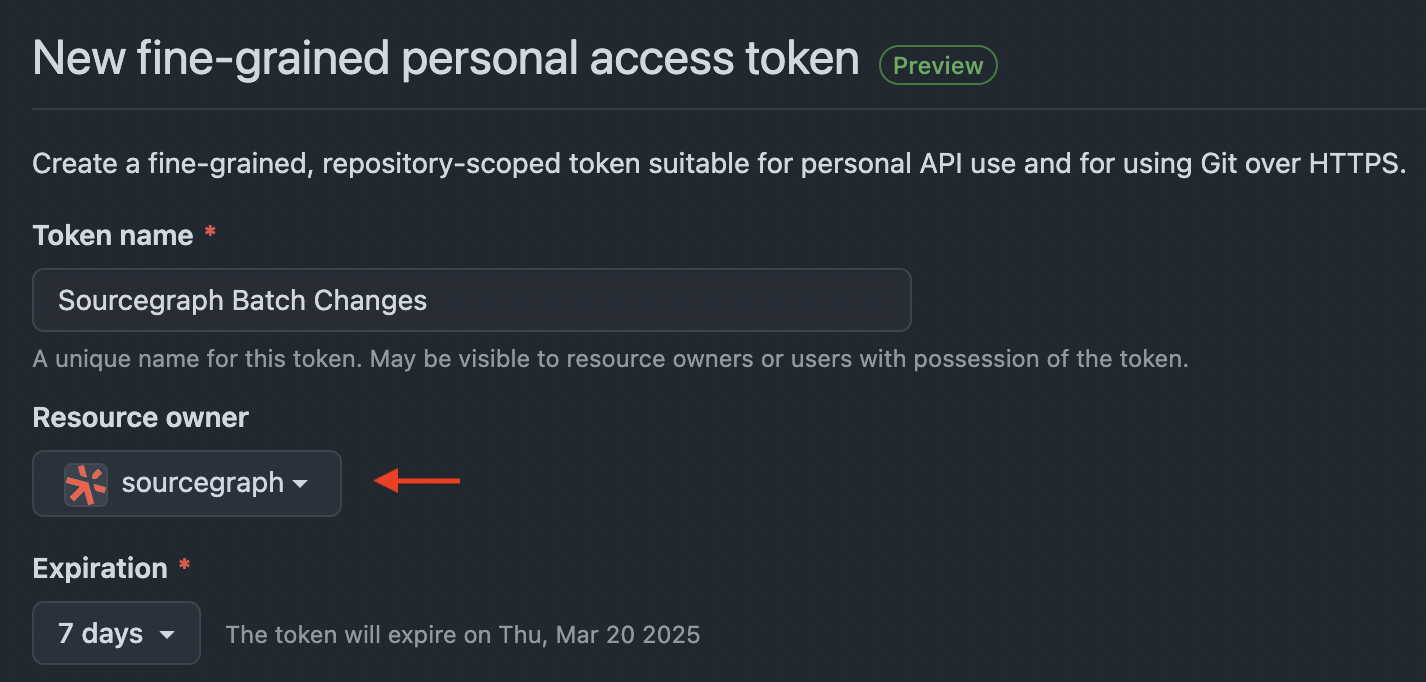
Pick the resource owner that owns the repositories you want to use with Batch Changes. This will likely be your company's GitHub organization.
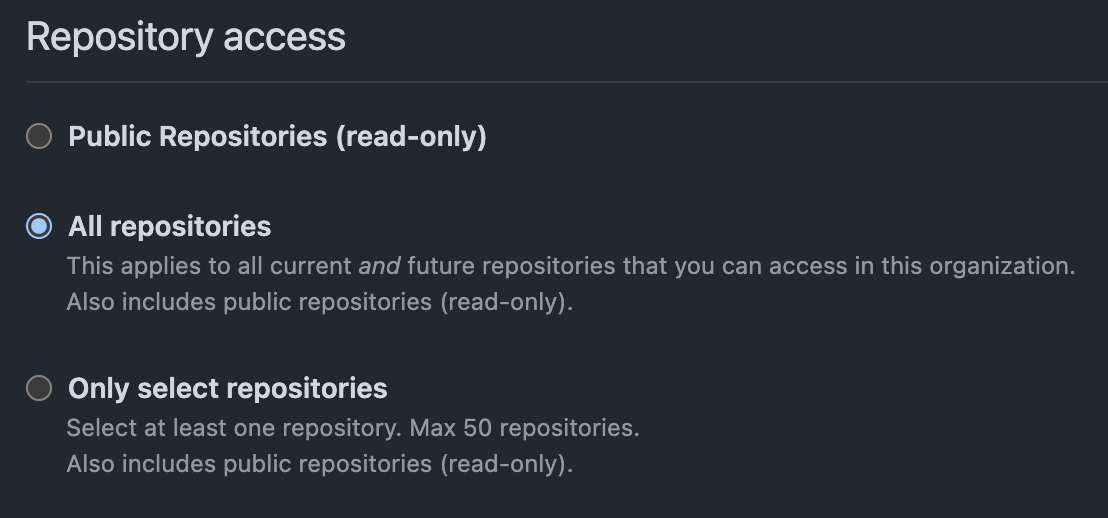
Scroll down and select "All repositories" so that your token can access all current and future repositories that you have access to. You may restrict it to "Only select repositories", but you may have to generate a new token when you want to handle a new repository with Batch Changes.
Under "Permissions," click on the arrows on the right-hand side to expand the list of repository and organization permissions.
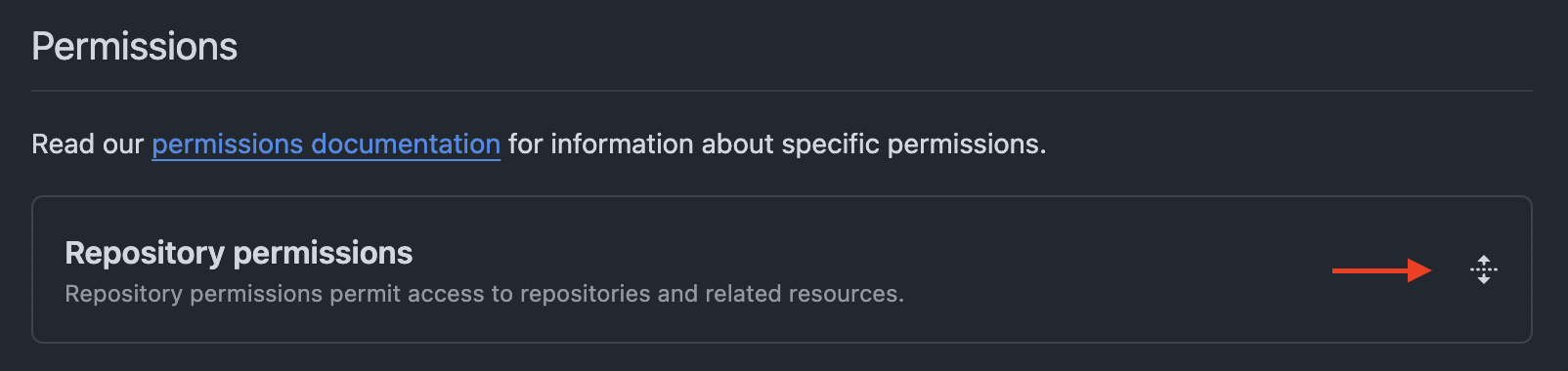
Under "Repository permissions", select the following permissions:
- Contents: Read and write
- Metadata: Read-only
- Pull requests: Read and write
- Workflows: Read and write
Under "Organization permissions", select the following permissions:
- Custom properties: Read-only
Once you created the token, copy it and add it to your Batch Changes credentials.
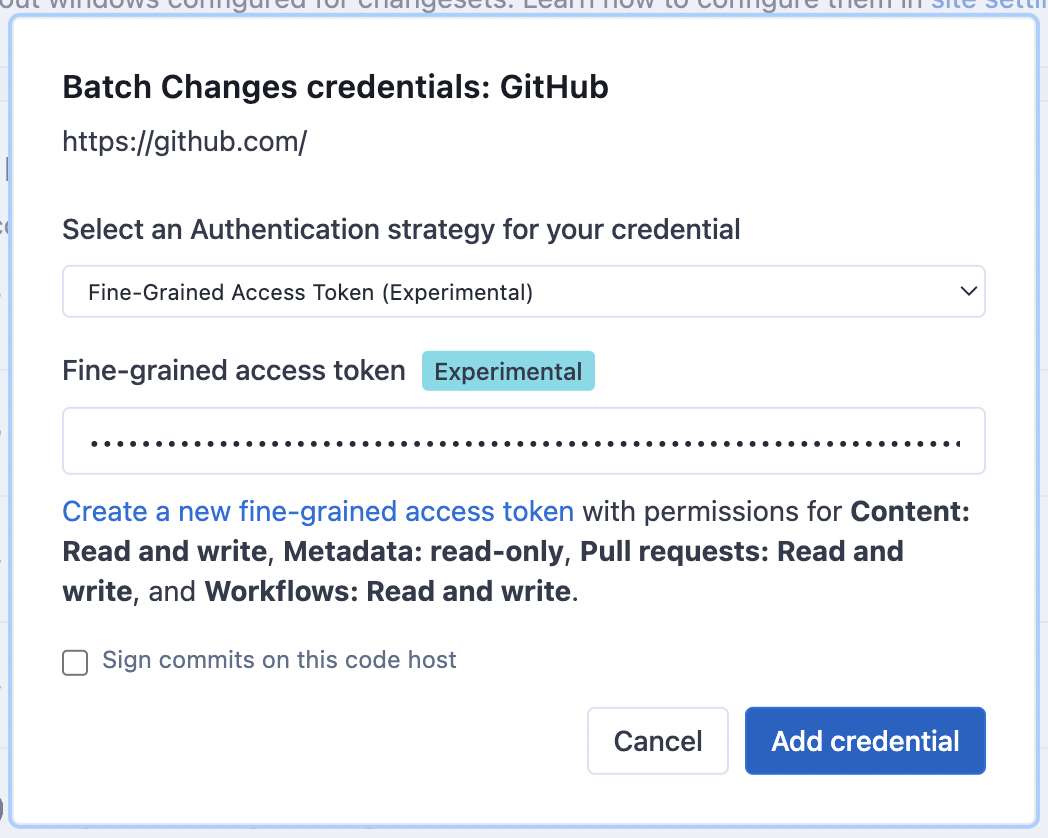
If your organization requires approval for fine-grained access tokens, you must wait for an administrator to approve the token before you can publish changesets with it.
The fine-grained access token is now ready to use. Create a new batch change to start using it.
GitHub Enterprise
Follow the steps to create a personal access token (classic) on GitHub Enterprise. Batch Changes requires the following scopes:
reporead:orguser:emailread:discussionworkflow
This is done by selecting the relevant checkboxes when creating the token:
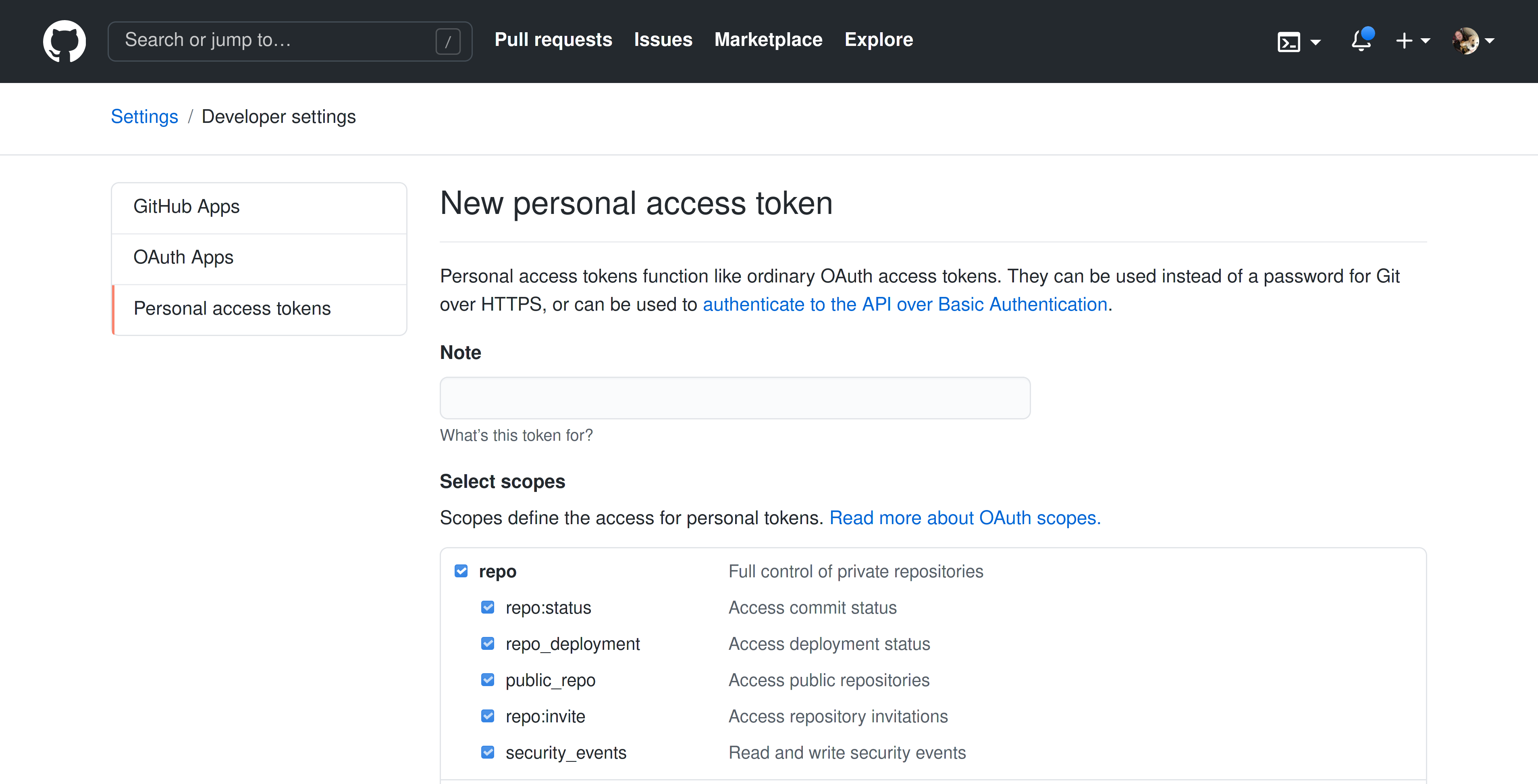
The workflow scope is technically only required if your batch changes modify files in the .github directory of a repository, but we recommend enabling it regardless to avoid confusing errors at a later time.
When working with organizations that have SAML SSO (Single Sign On) enabled, configuring credentials requires an additional step that involves white-listing the token for use in that organization.
Currently, for customers on an instance of GitHub Enterprise Cloud that uses SSH certificate authorities and requires SSH certificates to authenticate, we are unable to provide a means of authenticating Batch Changes to your code host.
Currently, classic personal and fine-grained access tokens are supported only. Alternative token types like OAuth access tokens (for example, OAuth apps) are not supported.
GitLab
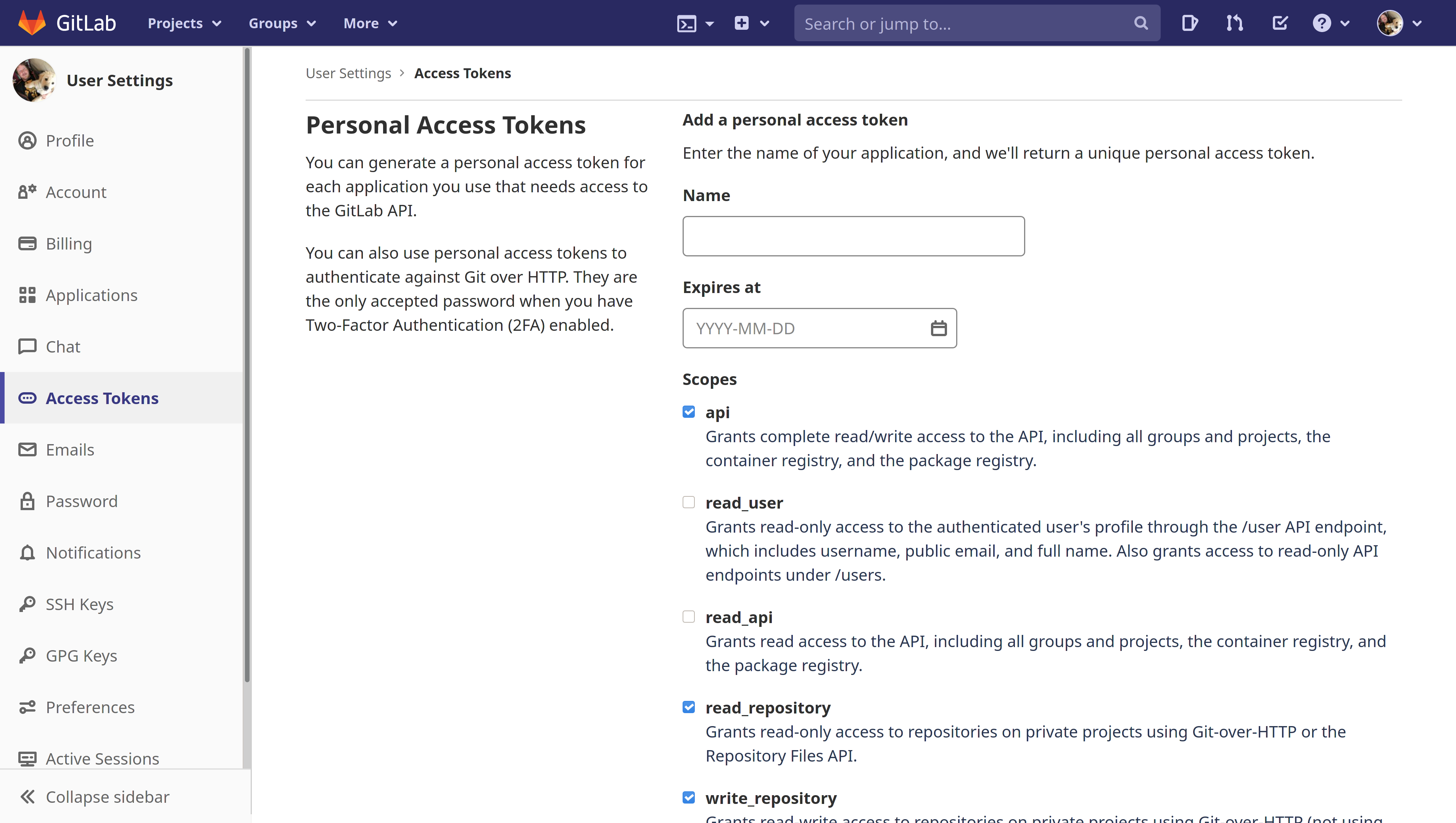
Follow the steps to create a personal access token on GitLab. Batch Changes requires the following scopes:
apiread_repositorywrite_repository
This is done by selecting the relevant checkboxes when creating the token:
Bitbucket Server/Bitbucket Data Center
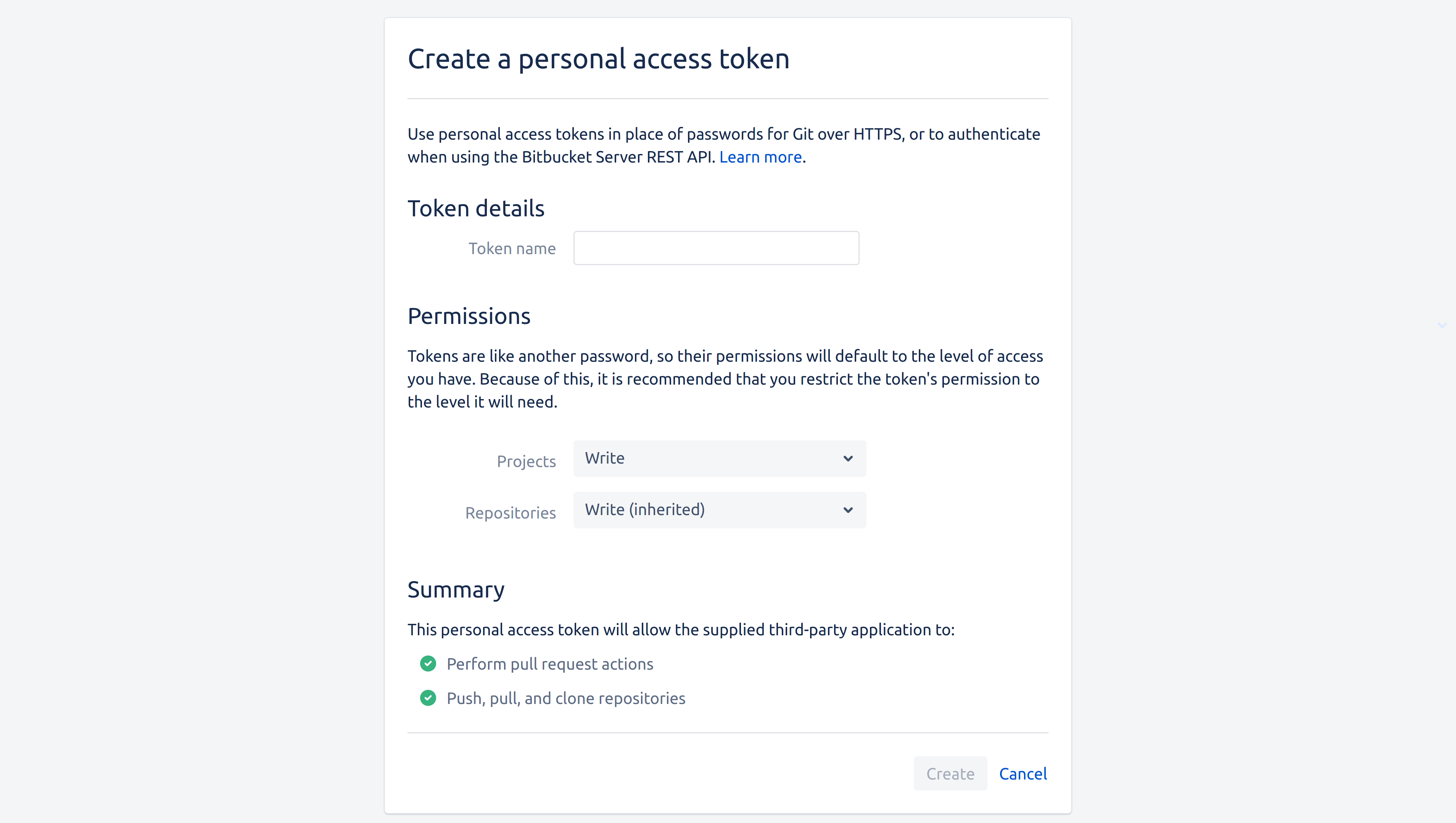
Follow the steps to create a personal access token on Bitbucket.
Batch Changes require the access token to have the write permission on both projects and repositories. This is done by selecting the Write level in the Projects dropdown and letting repositories inherit it:
Alternatively, you can use Bitbucket Server OAuth to authenticate without manually creating a token.
Bitbucket Cloud
On Bitbucket, follow the steps to create an app password. Batch Changes requires the following scopes:
account:readrepo:readrepo:writepr:writepipeline:read
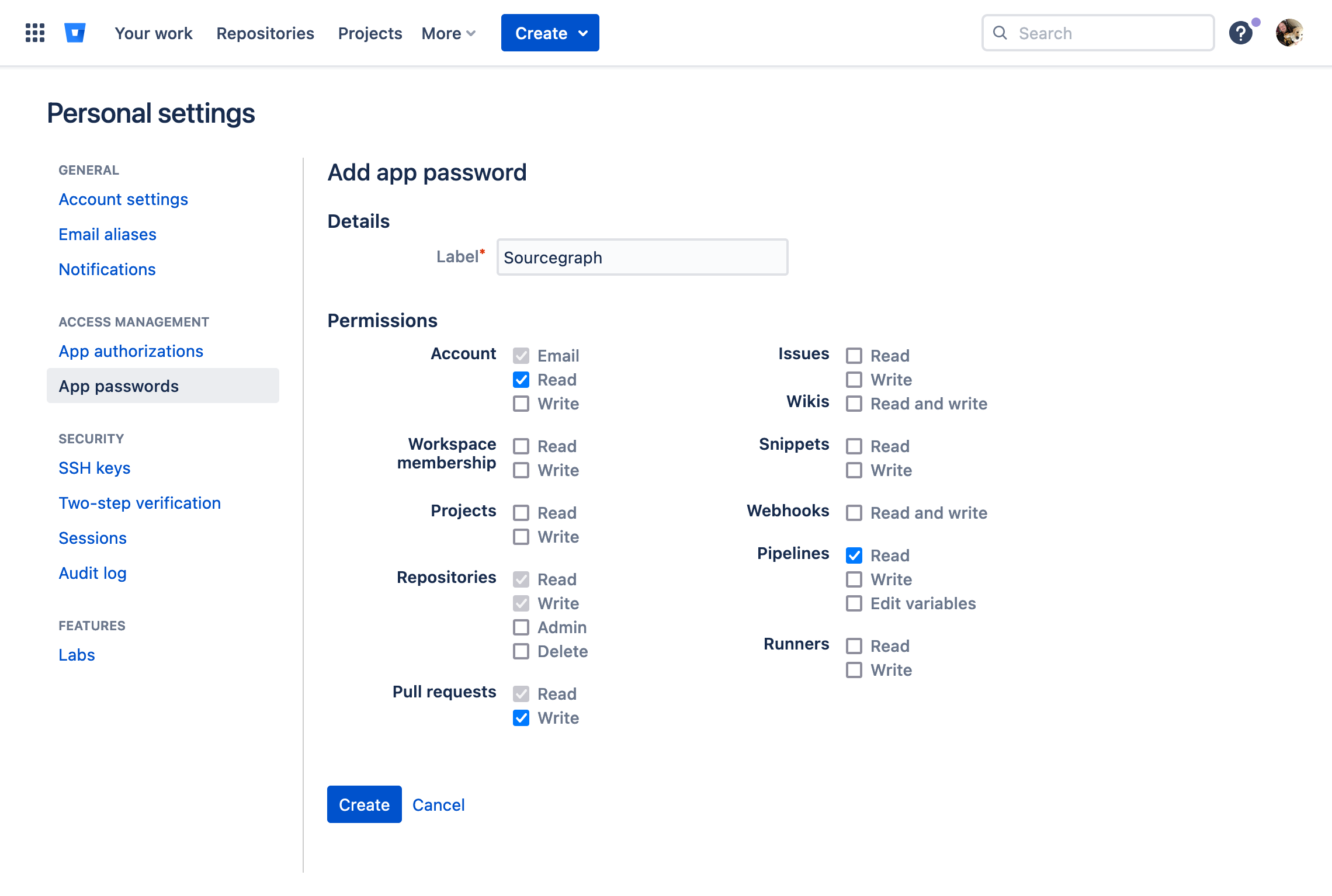
Alternatively, you can use Bitbucket Cloud OAuth to authenticate without manually creating an app password.
Azure DevOps
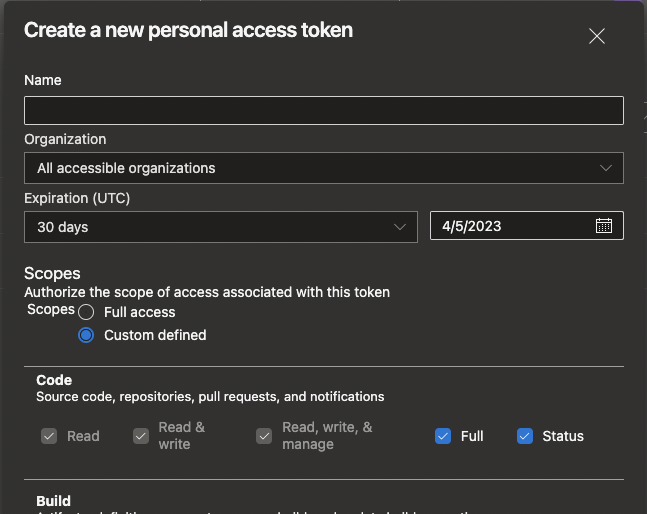
Follow the steps to create a PAT on Azure DevOps. Batch Changes requires the following scopes:
Organization:All accessible organizationsCode:FullCode:StatusPull Request Thread:Read & WriteUser Profile:Read
Click Show all scopes at the bottom of the Create a new PAT popup to get the full list of available scopes.
Gerrit
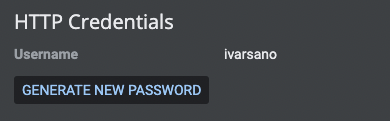
- Permissions to create, comment, close, merge, and delete a Change in Gerrit
- Create an HTTP password in the user settings page
SSH access to code host
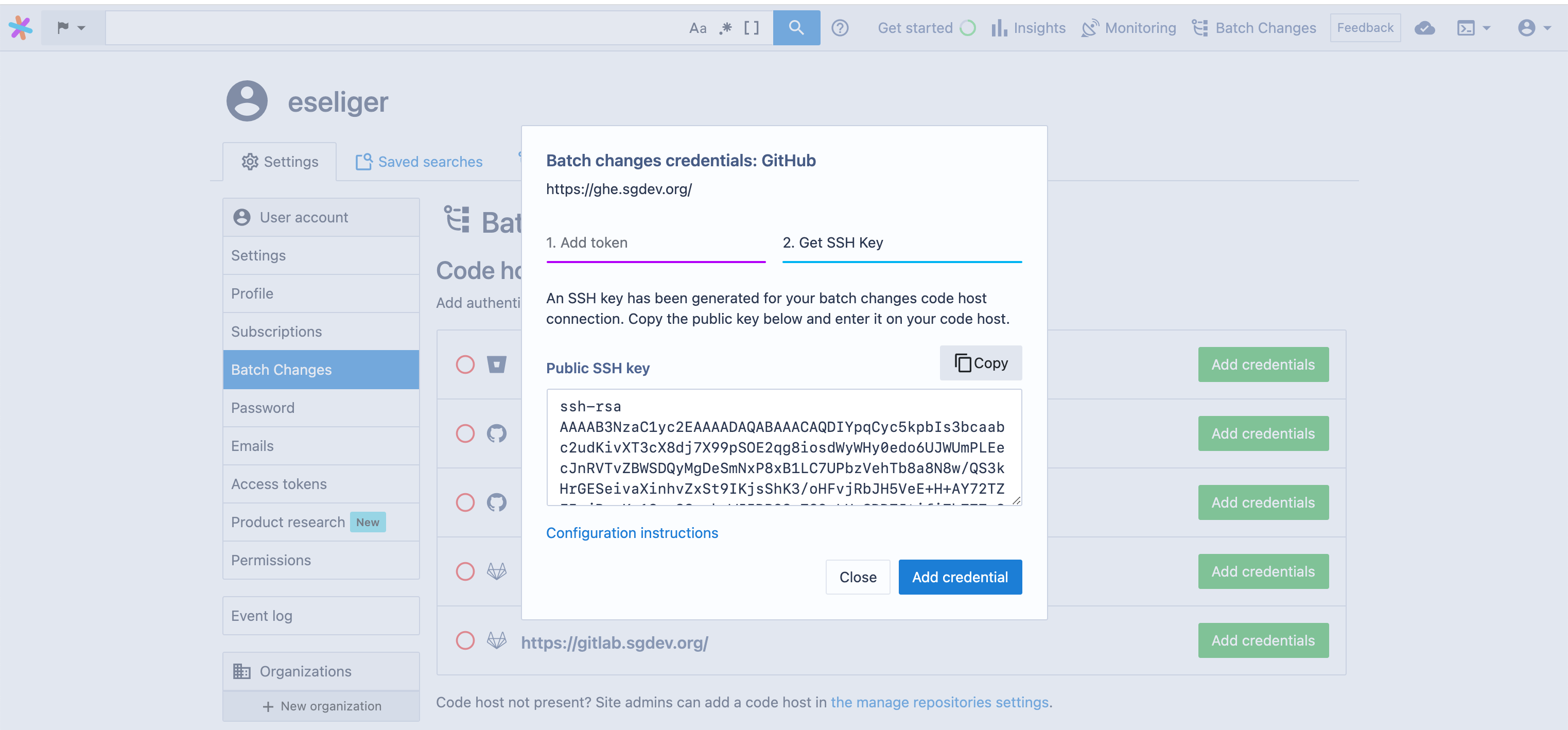
When Sourcegraph is configured to clone repositories using SSH via the gitURLType setting, an SSH keypair will be generated for you, and the public key needs to be added to the code host to allow push access. You will be given that public key when adding your personal access token. You can also come back later and copy and paste it into your code host's SSH access settings page.
GitHub Apps
EXPERIMENTAL: Using GitHub Apps to authenticate Batch Changes is currently experimental, and there may still be some rough edges.
GitHub apps follow the same concepts as personal and global access tokens.
Limitations
- GitHub apps can only be used with GitHub code hosts.
- The forking mechanism (
fork:true) is only supported if the GitHub app has access to all repositories of the installation, and if the origin repository and the fork are in the same organization that the GitHub app is installed to (GitHub Docs). - Your network must allow bidirectional communication between Sourcegraph and GitHub.
Migrating from PATs to GitHub Apps
You can migrate your credentials from PATs to GitHub Apps by deleting the PAT credential and creating a GitHub app credential.
Batch Changes will look at the available credentials, and pick one that matches the targeted namespace (code host, organization, repository).
You can continue to use existing batch changes without modifications.
Adding a GitHub app
Adding a GitHub app is done through the Batch Changes section of your user settings:
- Navigate to the credentials settings, as shown in the personal and global service account token sections
- Click Add credentials, select GitHub App as the Authentication strategy and follow the steps to create a GitHub app
It may take a few seconds before Sourcegraph receives the callback from GitHub. Please refresh your page until you see a success message.
Code hosts with GitHub apps configured are indicated by a green tick to the left of the code host name as well as details about the GitHub app on the right, while code hosts without credentials have an empty red circle next to them.
Updating Installations and Permissions for a GitHub App
Currently, Sourcegraph doesn't handle changed installations or permissions for a GitHub app.
To update those properties, you can delete the current credential and create a new one.
Removing a GitHub app
To remove a GitHub app from your Sourcegraph instance, navigate back to the same section of your settings, then click Remove. Once the GitHub app is removed, the code host's indicator should revert to the empty red circle, unless there's still a global credential configured.
If you want to delete the GitHub app entirely, you have to navigate to GitHub's list of applications and delete it from there.
Bitbucket OAuth
Sourcegraph supports OAuth-based authentication for Batch Changes with both Bitbucket Server (Data Center) and Bitbucket Cloud. This allows users to authorize Batch Changes to act on their behalf using OAuth instead of manually creating personal access tokens or app passwords.
Bitbucket OAuth for Batch Changes requires a site administrator to first configure a Bitbucket authentication provider in Sourcegraph. The same auth provider used for SSO sign-in is reused for Batch Changes — no additional provider configuration is needed.
Bitbucket Server OAuth
Prerequisites
A Sourcegraph site administrator must configure a Bitbucket Server authentication provider. If your instance already uses Bitbucket Server for sign-in, this step is already complete.
The OAuth consumer in Bitbucket Server should be configured as an incoming application link with at minimum Read permission on Repositories. When a user initiates the Batch Changes OAuth flow, Sourcegraph automatically requests the elevated scopes needed:
REPO_READ— read repository contents and metadataREPO_WRITE— push branches and create/update pull requests
Adding a Bitbucket Server OAuth credential
- Navigate to User settings > Batch Changes
- Click Add credentials for your Bitbucket Server code host
- Select Bitbucket Server OAuth as the Authentication strategy
- Click the Authorize button
- You will be redirected to your Bitbucket Server instance to grant access
- After authorizing, you will be redirected back to Sourcegraph with the credential automatically provisioned
Migrating from PATs to Bitbucket Server OAuth
You can migrate from personal access tokens to OAuth by deleting the existing PAT credential and creating a new one using the Bitbucket Server OAuth option. Existing batch changes will continue to work with the new credential.
Bitbucket Cloud OAuth
Prerequisites
A Sourcegraph site administrator must configure a Bitbucket Cloud authentication provider. If your instance already uses Bitbucket Cloud for sign-in, this step is already complete.
The OAuth consumer in Bitbucket Cloud should have the following permissions enabled:
- Account: Read
- Email: Read
- Repositories: Read
- Pull requests: Read and Write
If the OAuth consumer is missing required permissions, users will see an invalid_scope error
during the OAuth flow. Ensure all the above permissions are selected in your Bitbucket Cloud
workspace under Settings > OAuth consumers.
When a user initiates the Batch Changes OAuth flow, Sourcegraph requests the following scopes:
account— read the authenticated user's account informationemail— read the authenticated user's email addressesrepository— read and access repository contentspullrequest:write— create and update pull requests
Adding a Bitbucket Cloud OAuth credential
- Navigate to User settings > Batch Changes
- Click Add credentials for your Bitbucket Cloud code host
- Select Bitbucket Cloud OAuth as the Authentication strategy
- Click the Authorize button
- You will be redirected to Bitbucket Cloud to grant access
- After authorizing, you will be redirected back to Sourcegraph with the credential automatically provisioned
Migrating from app passwords to Bitbucket Cloud OAuth
You can migrate from app passwords to OAuth by deleting the existing credential and creating a new one using the Bitbucket Cloud OAuth option. Existing batch changes will continue to work with the new credential.
Token refresh
OAuth tokens have limited lifetimes. Sourcegraph automatically refreshes tokens when they expire using the refresh token obtained during authorization. Token refresh is handled transparently — users do not need to re-authorize unless the refresh token itself is revoked or the OAuth consumer is deleted.
The Bitbucket authentication provider must remain configured in the Sourcegraph site configuration for token refresh to work. If the auth provider is removed, tokens will not be refreshed and will eventually expire.
Removing a Bitbucket OAuth credential
When a Bitbucket OAuth credential is removed, the linked external account used for Batch Changes is also cleaned up. This does not affect the user's ability to sign in to Sourcegraph via Bitbucket — sign-in and Batch Changes use separate external accounts.